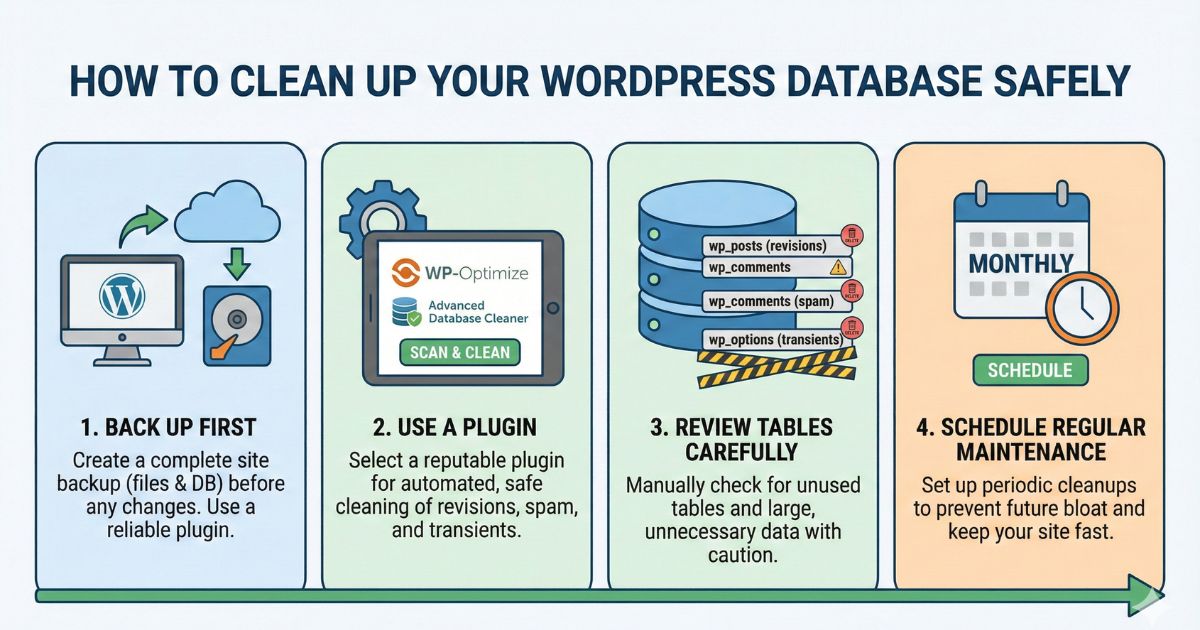
Your WordPress site stores posts, pages, comments, settings, and plugin data inside a database. Over time, this database fills up with old items you no longer need. This slows down your site and affects performance. When you clean your WordPress database safely, you make your site faster and easier to manage. You do not need technical skills to do this.
This guide will show you simple steps that any user can follow.
Why a Clean Database Matters
Your database works like a storage room for your website. When it becomes full of old items, WordPress takes longer to load pages. A slow site affects your visitors and your business.
A clean database gives you:
- Faster page load times
- Better performance on large sites
- Less stress on your hosting
- Fewer errors
Agencies and high-traffic sites also need smooth performance, so regular cleanup is essential.
What Fills Up Your WordPress Database
Many users do not know what sits inside their database. Here are everyday items that create clutter:
Post Revisions
WordPress saves a new revision every time you edit a page or blog post. Hundreds of revisions can pile up.
Auto Drafts
WordPress creates drafts without you noticing. These drafts stay in your database until you remove them.
Spam and Trashed Comments
Spam comments stay in your database even after you delete them from the screen.
Expired Transients
Transients are temporary files created by plugins. When they expire, they still stay in the database.
Old Plugin Data
Some plugins leave data behind even after you uninstall them.
Logs and Tracking Data
Security plugins, form plugins, and analytics tools store logs that can grow over time.
All of this adds weight to your site.
Step 1: Back Up Your Website First
Before you clean your WordPress database, create a backup. This step protects you if something goes wrong.
You can back up:
- Database only
- Files only
- Full site backup
A full backup is the safest option. Store the backup on Google Drive or Dropbox.
Example: If you delete revisions by mistake, you can restore them easily from the backup.
Step 2: Delete Old Post Revisions
Post revisions take a lot of space. If you edit a post 20 times, WordPress saves all versions.
You can safely delete:
- Old post revisions
- Old page revisions
- Old custom post revisions
This cleans thousands of rows in many sites.
Example: An agency with 200 posts may have more than 4,000 revisions.
Step 3: Empty Spam and Trash
Comments you delete still stay in the database until you clear them.
Clean these areas:
- Spam comments
- Comments in trash
- Posts in trash
- Pages in trash
A weekly cleanup keeps your database light.
Step 4: Remove Expired Transients
Plugins create transients to store temporary data. They help your site load faster, but they pile up when they expire.
These files are safe to delete. Removing them frees space without breaking your site.
Standard plugins that create transients:
- WooCommerce
- Caching plugins
- Security plugins
If you run a WooCommerce store, you may see thousands of expired transients.
Step 5: Delete Unused Plugin and Theme Tables
When you deactivate or remove a plugin, its data may stay inside the database. These extra tables do nothing for your site.
Example:
You remove a form plugin, but its form entries still stay in the database.
You can safely remove these leftover tables after confirming you no longer need the plugin.
Step 6: Clean Up Auto Drafts and Orphaned Data
Auto drafts are created when you start writing a post and leave it unfinished. Orphaned data is information that no longer belongs to any post or page.
Cleaning these items improves loading speed.
These items include:
- Auto drafts
- Orphaned post metadata
- Orphaned comment metadata
These items become junk over time.
Step 7: Optimize Database Tables
After you delete unwanted data, you need to optimize the tables. Think of it like organizing the shelves in your storage room. This step removes empty spaces in the database, improving performance.
You can optimize:
- Post tables
- Comment tables
- User tables
- Options tables
This gives your website a performance tune-up.
Step 8: Set a Regular Cleanup Schedule
Do not wait until your site slows down. Set a schedule to clean your database regularly.
Good schedules:
- Weekly cleanup for high-traffic sites
- Monthly cleanup for small sites
- After you remove big plugins
- After major content changes
A clean database helps your site stay stable and responsive.
Step 9: Keep Only What You Use
A good way to prevent database bloat is to keep your WordPress clean.
Remove:
- Plugins you do not use
- Themes you do not use
- Tools you installed for testing
Each plugin adds data to your database. Fewer plugins mean a cleaner site.
When to Avoid Cleaning the Database
Sometimes, you should not clean specific data.
Avoid deleting if:
- You need old revisions for a project
- You use logs for tracking issues
- You rely on data stored by plugin tables
If you are not sure, run a backup and ask a developer.
Conclusion
A clean WordPress database keeps your site fast, stable, and easy to manage. You do not need excellent technical skills to do this. Remove old data, delete unused items, optimize your tables, and set a regular schedule. Your site will load faster and run better.
Apply these steps today to keep your site light and smooth.